Search
Tambour has two places to search: the search panel, which opens from Search in the header and suggests results as the shopper types, and the search page, which lists every result. Shopify decides which products, articles and pages match a search and in what order. The theme decides how they look.
Set up the search panel
Section titled “Set up the search panel”The panel’s settings are in Theme settings > Search.
Search panel on desktop sets how the panel opens on screens 750px and wider. Drop panel, the default, drops down from the top of the page over the header. Full screen covers the whole screen with a larger search field. On phones the panel always fills the screen.
How Search looks in the header, as a link or a field, is Search style on the Header section. See Header and menus.
Show suggestions while typing is on by default. Turn it off and there is no panel: Search in the header goes straight to the search page, and the other settings in this group do nothing.
Before the shopper has typed two characters, the panel shows “Browse the shop”: your seven largest collections as spines, each as tall as its product count.
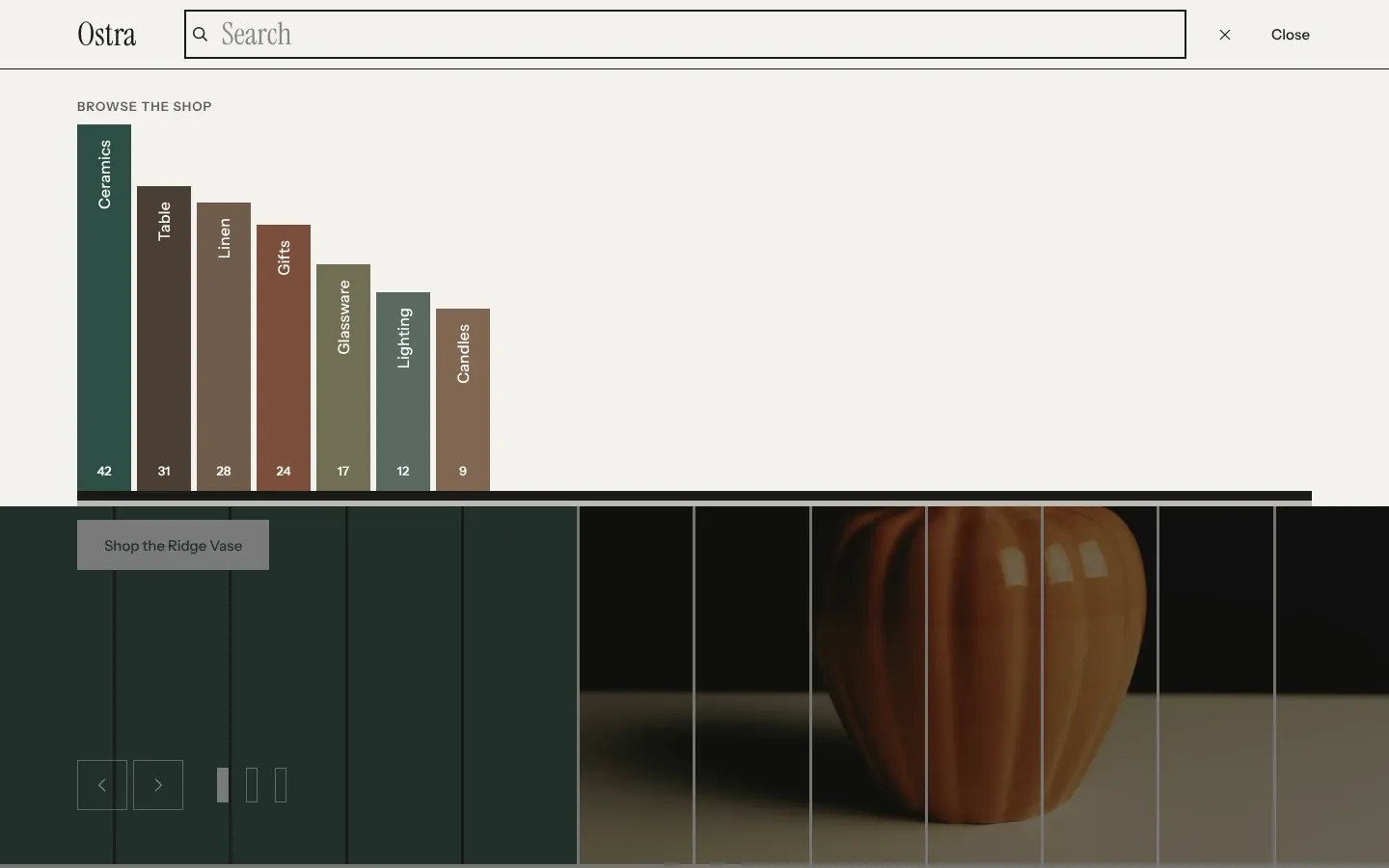
From the second character, results appear a moment after the shopper stops typing.
Choose what the panel suggests
Section titled “Choose what the panel suggests”Under Result types, Products, Collections, Articles and Pages each turn one kind of result on or off. All four are on by default. Shopify’s own search suggestions show under “Suggestions” beside the results, whatever you choose here.
What each result shows:
- Products show as cards with the first photo and the title. Show price adds the price, written as “From $40” when the variants cost different amounts. Show vendor adds the vendor, which helps a shop that sells several brands. Products shown sets how many cards appear, from 2 to 8, with 4 by default.
- Collections stand as small spines, each as tall as its product count, in the collection’s spine color.
- Articles show a small photo, the title, the date and the reading time.
- Pages show their title only.
Above the cards, a count such as “3 results” and a line naming each type found lead to a row of spines, one per type, each as tall as its number of results. Clicking Products, Articles or Pages opens the search page with only that type. The panel shows at most 10 results of each type, so these counts stop at 10. The search page has the full count.
The last row of the panel is “Search for” with the shopper’s words. It opens the search page.
Set up the search page
Section titled “Set up the search page”The search page uses the Search section. Open it in the theme editor from the page menu at the top.
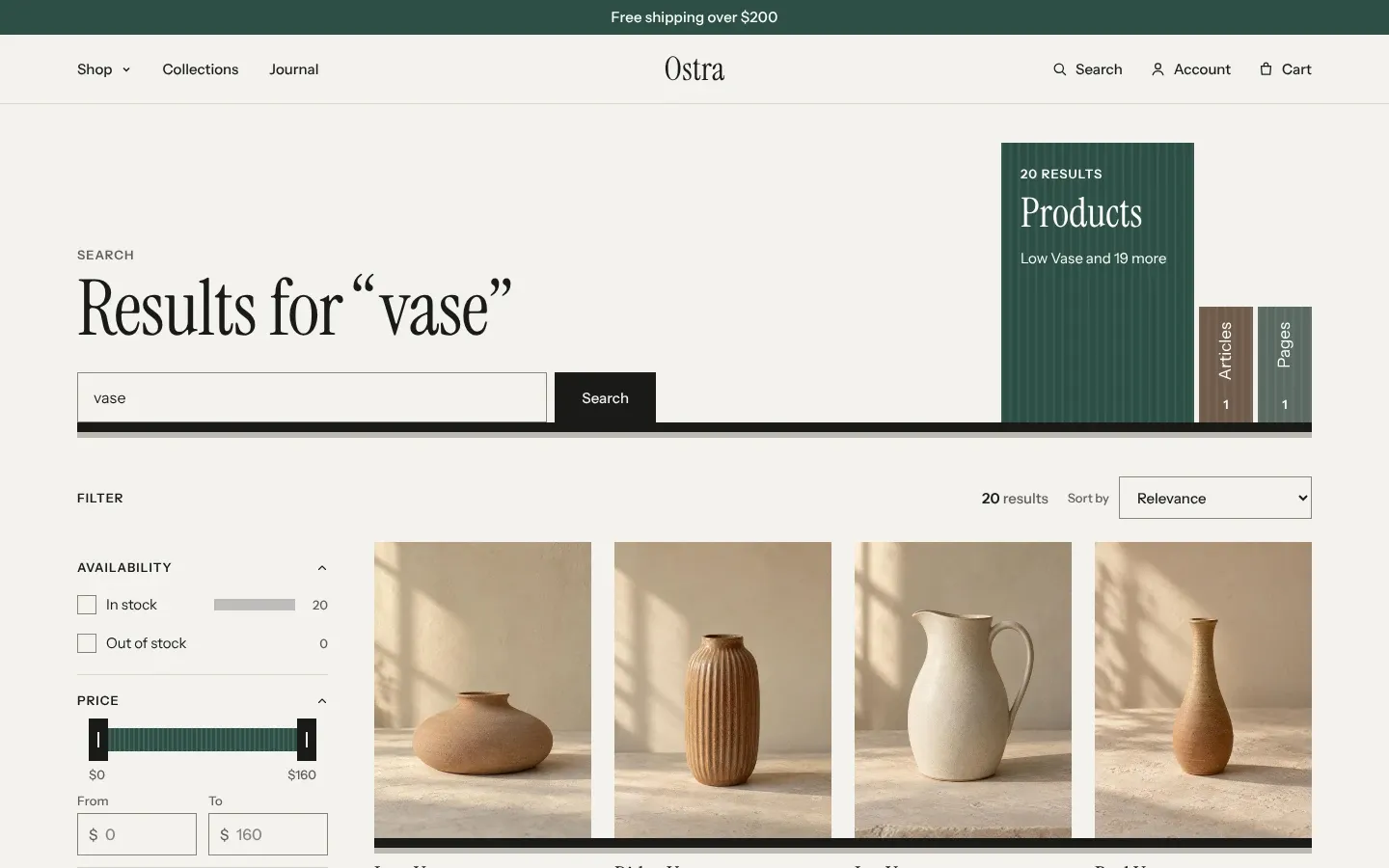
The page shows products first, as product cards, then articles and pages as rows with the title and up to 30 words of their text. Collections are not search page results; they appear only in the panel. Results per page sets how many results load at once, 24 by default, and a “Load more” button brings the next ones.
Three spines over the results, Products, Articles and Pages, are as tall as each type’s number of results. The open spine names the count and the first result. A type with no results loses its spine.
Filters on the search page come from Shopify. Set them up in the Search & Discovery app. See Shopify’s guide to filters.
Add suggested searches
Section titled “Add suggested searches”Suggested searches on the Search section lists searches to offer when a search finds nothing. Separate them with commas, such as vase, linen, glaze, candle. They show under “Try searching for” as buttons, and on the search page before anything is searched.
Use three to five words your shoppers actually buy by. A suggestion that itself finds nothing sends the shopper to another empty page.
What shoppers see when nothing is found
Section titled “What shoppers see when nothing is found”In the panel, the shopper sees “No results for” with their words, the tip “Check the spelling or try a shorter word.” and the Browse the shop shelf of your seven largest collections.
On the search page, the heading reads “No results for” with their words. Under the search field are your Suggested searches, then a Browse the shop shelf with up to eight of your largest collections that hold products. On phones the shelf lies down as bars.
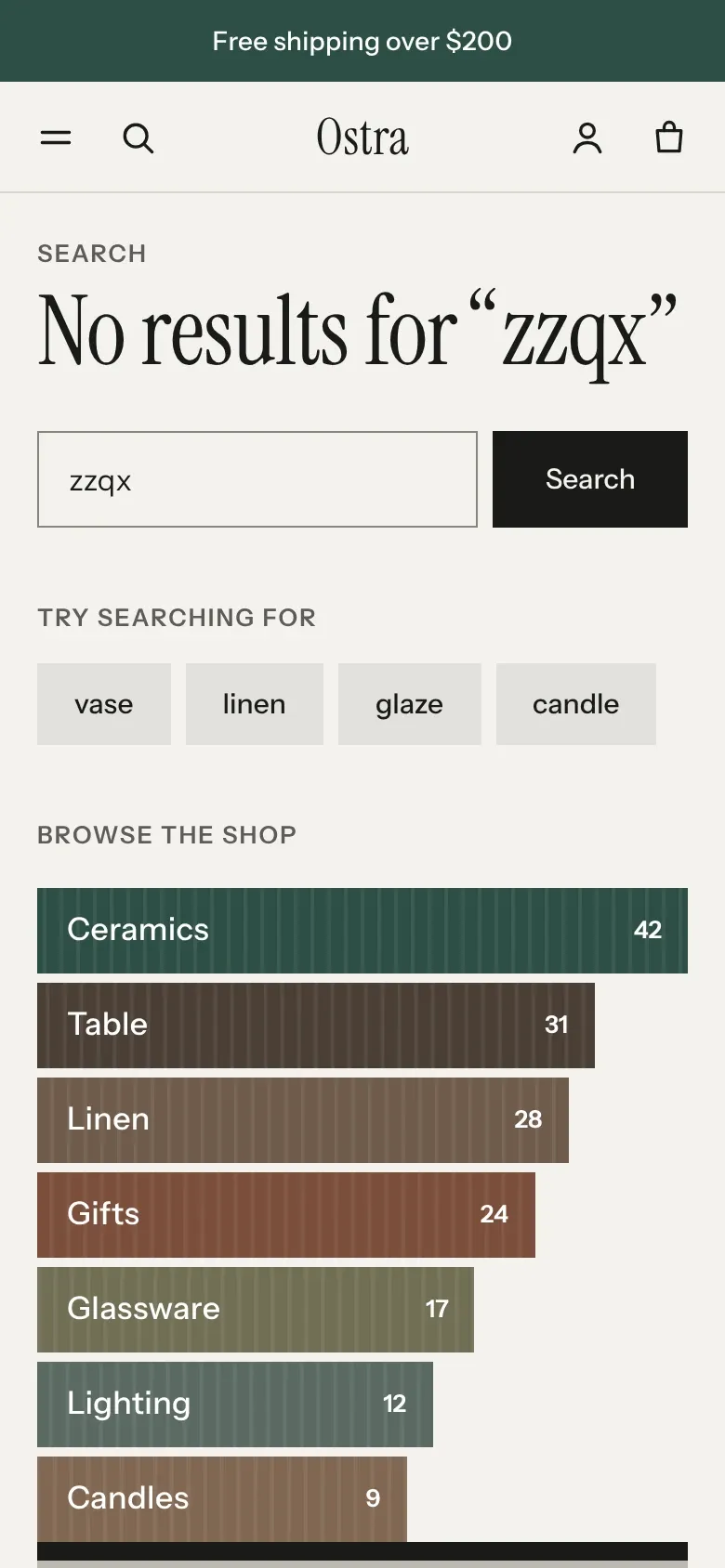
If a filter leaves no results, the filters stay on screen with “No results match these filters.” so the shopper can take one off.
Common questions
Section titled “Common questions”Why doesn’t a product show up in search?
Section titled “Why doesn’t a product show up in search?”Shopify decides what search finds, not the theme. A product must be active and available on your Online Store sales channel. See Shopify’s guide to storefront search.
Can I add synonyms, so “jug” finds “pitcher”?
Section titled “Can I add synonyms, so “jug” finds “pitcher”?”Yes, in Shopify’s Search & Discovery app. See Shopify’s guide to storefront search.
Why does the panel say 10 results when the search page says 40?
Section titled “Why does the panel say 10 results when the search page says 40?”The panel shows at most 10 results of each type. The search page counts them all.
Why can’t shoppers search collections on the search page?
Section titled “Why can’t shoppers search collections on the search page?”Shopify’s search page doesn’t return collections. Leave Collections on in Result types, and the panel shows them.