The theme editor
You customize Pawsome in Shopify’s theme editor. To open it, go to Online Store in your Shopify admin and click Edit theme next to Pawsome. Shopify’s theme editor docs cover the editor itself.
Templates
Section titled “Templates”A template decides which sections a type of page starts with. Pick one from the template menu at the top of the editor. Pawsome has these:
| Template | Used for | Main section |
|---|---|---|
index |
Your home page | None. Add any sections you like. |
product |
Product pages | Product |
product.gift-card |
Gift card products | Product |
collection |
Collection pages | Collection |
list-collections |
The page listing all collections | Collections list |
search |
Search results | Search results |
cart |
The cart page | Cart |
blog |
Blog pages | Blog |
article |
Blog posts | Article |
page |
Standard pages | Page |
page.about |
An About page | Page, with sections such as Image with text overlay and Media with text around it |
page.contact |
A contact page | Page and Contact form |
page.faq |
A questions page | Page and FAQ |
404 |
The page for a broken link | 404 page |
password |
The page shown while your store is password protected | Password page |
gift_card |
The gift card a customer receives | None. It uses your logo from Theme settings > Brand and has no sections. |
Your preset may add sections below the main one, such as Related products on product pages.
product.gift-card, page.about, page.contact and page.faq are alternate templates. A product or page uses the standard template until you assign another one: open it in your Shopify admin and choose the template under Theme template. You can also create your own alternate templates for products, collections, pages, blogs and blog posts. Shopify’s Templates page explains both.
Section groups
Section titled “Section groups”Section groups hold the sections that repeat on every page. Pawsome has three. They show on every template except the password page and the gift card.
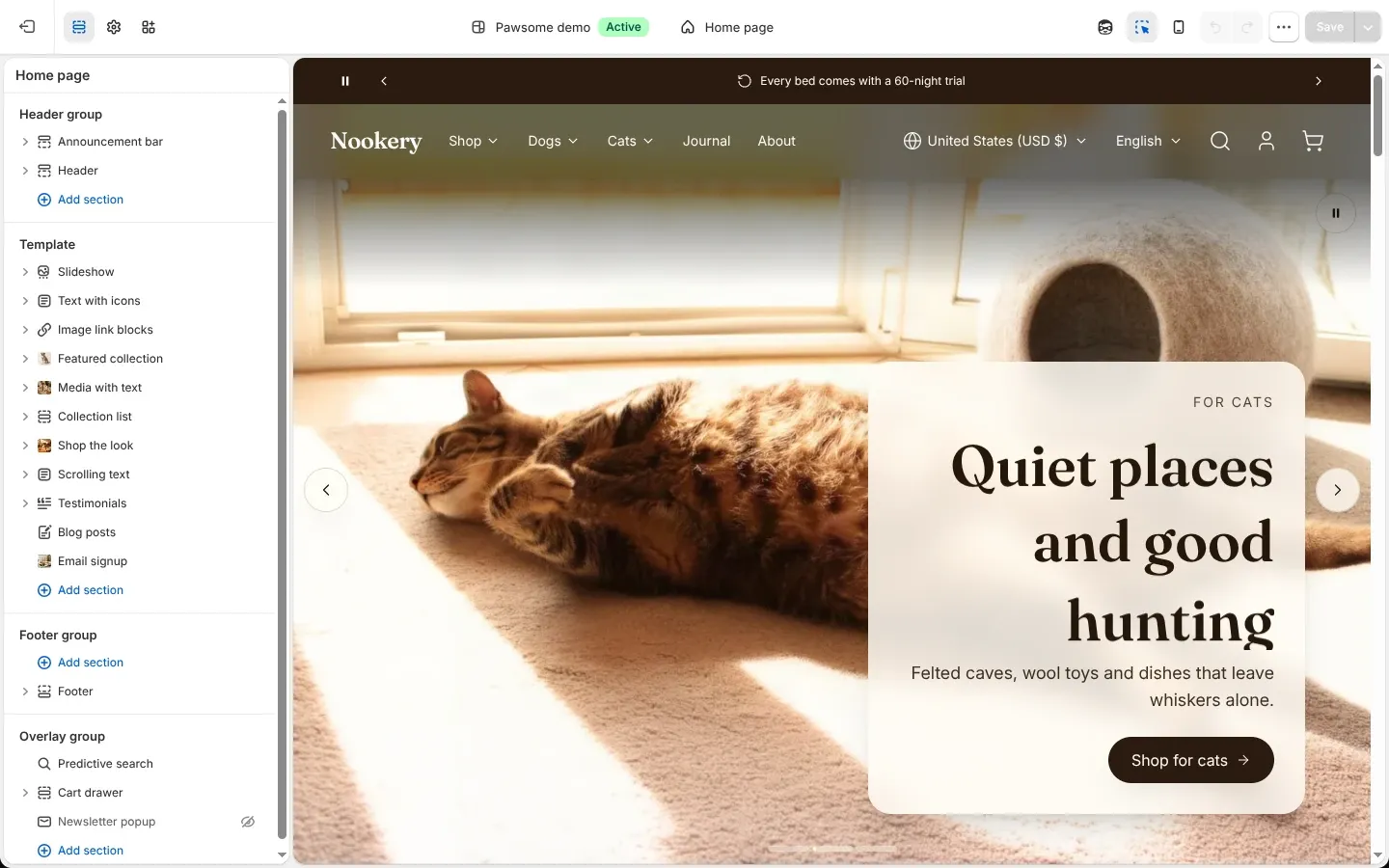
- The header group holds the Announcement bar and the Header. You can also add Apps and Custom Liquid here.
- The footer group holds the Footer. You can also add Email signup, Logo list, Rich text, Scrolling text, Text with icons, Apps and Custom Liquid here.
- The overlay group holds the parts that open on top of the page: Predictive search, the Cart drawer and the Newsletter popup. The newsletter popup starts hidden. Show it from the sidebar when you want it. You can also add Apps and Custom Liquid here.
A change to a section group shows on every page at once.
Sections
Section titled “Sections”To add a section, click Add section in the sidebar, then pick one from the list or use the Search sections field. Pawsome sorts its sections into ten categories:
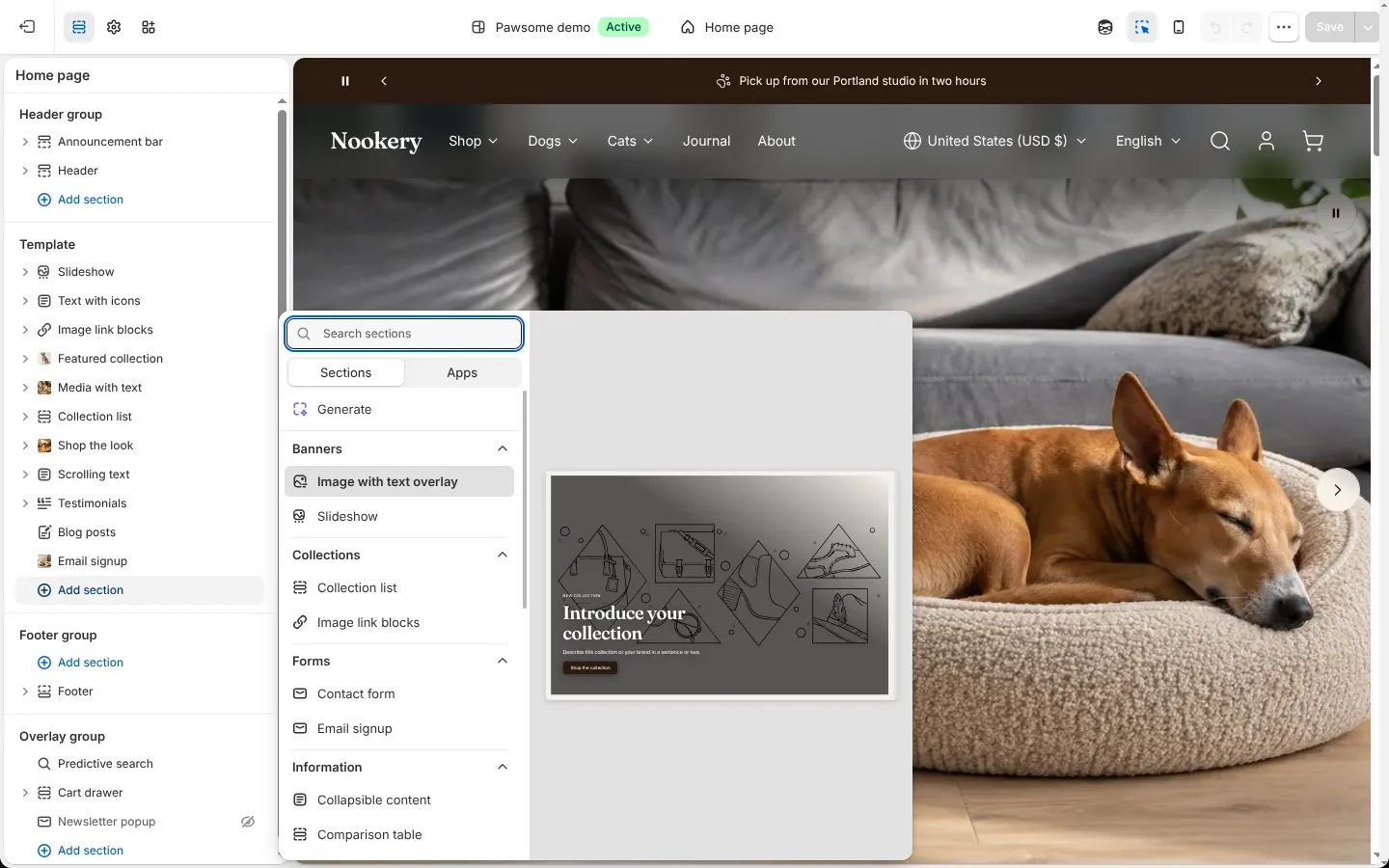
- Banners: Slideshow, Image with text overlay, and Collection banner on collection templates.
- Products: Featured collection, Featured product, Hot spots, Recently viewed, Shop the look, and Related products on product templates.
- Collections: Collection list, Image link blocks, and Collection links on collection templates.
- Storytelling: Before and after, Blog posts, Media with text, Multiple images with text, Revealed image on scroll, Scrolling image story and Timeline.
- Media: Featured video.
- Text: Multi-column, Rich text and Scrolling text.
- Social proof: Logo list, Testimonials and Text with icons.
- Information: Collapsible content, Comparison table, FAQ, Specifications and Tabs.
- Forms: Contact form, Email signup, and Newsletter popup in the overlay group.
- Utility: Apps, Custom Liquid, and Announcement bar in the header group.
Shopify allows up to 25 sections per template. Shopify’s Sections and blocks page covers moving, hiding and removing them.
Blocks
Section titled “Blocks”Blocks are the pieces inside a section, such as a slide, a question or a button. To add one, hover over the section, click Add block, then pick a block from the list or use the Search blocks field. Pawsome has two kinds.
Section blocks belong to one section. A slide only exists in the Slideshow, and a question only in the FAQ. Each section’s reference page lists its blocks and their settings.
Theme blocks work in any section that accepts them. The Product and Featured product sections are built entirely from them: Product title, Product price, Variant picker, Buy buttons and the rest. Content blocks such as Heading, Text and Button also work in sections like Media with text and Before and after. A Button group holds Button blocks of its own. Each block’s reference page lists the sections that accept it.
App blocks and app embeds
Section titled “App blocks and app embeds”Apps add to Pawsome in two ways.
App blocks go inside a section. You can add them to the Apps section, which works on any template and in any section group, and directly inside these sections: Product, Featured product, Collection, Cart, Cart drawer, Article, Password page and Footer. An app’s blocks show up in the block list once the app is installed.
App embeds float over the page or run without anything visible, such as a chat button or a tracking script. Turn them on under App embeds in the editor sidebar. Shopify’s Extend your theme with apps page covers both.
Theme settings
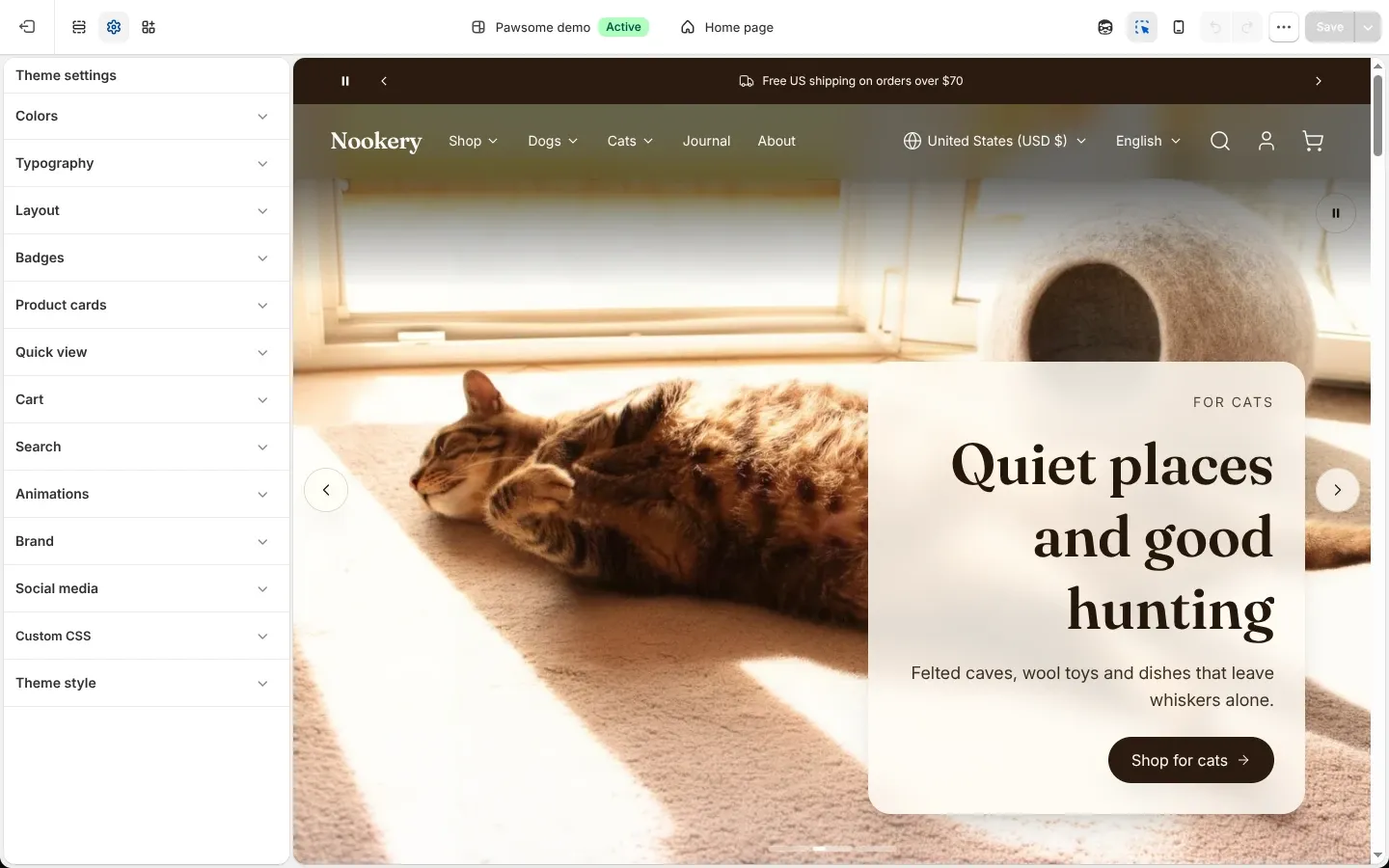
Section titled “Theme settings”Theme settings in the editor sidebar holds the settings that apply across the whole store. Pawsome groups them into Colors, Typography, Layout, Badges, Product cards, Quick view, Cart, Search, Animations, Brand and Social media. Theme style inside Theme settings switches between presets, as Presets explains.