Blogs and blog posts
You write blog posts in Shopify admin under Content > Blog posts. Pawsome lays them out in three places: the blog page that lists a blog’s posts, the post page, and the Blog posts section you can add to any page.
The blog page
Section titled “The blog page”The blog template holds one section, Blog. In the theme editor, open a blog from the page selector at the top, then select the Blog section.
- Posts per page runs from 6 to 24. Past that, numbered page links show under the grid.
- Columns sets two, three or four columns on large screens. Phones show one post per row.
- Feature the newest post shows the first post on page one as a wide card across the row.
- Header content adds rich text under the blog title, for an introduction.
- Show tag filter lists the blog’s tags above the posts, with an All link first. Each tag opens the blog filtered to that tag, and the title shows which tag is active.
The Post card settings choose what each card shows: image, date, author, reading time, comment count, tags and excerpt. Image ratio applies to every card.
A blog with no posts shows a “No posts yet” message.
The blog post page
Section titled “The blog post page”The article template starts with the Article section. Every preset follows it with a Blog posts section that shows more posts from the same blog, and the Pawsome preset puts a Featured collection between the two.
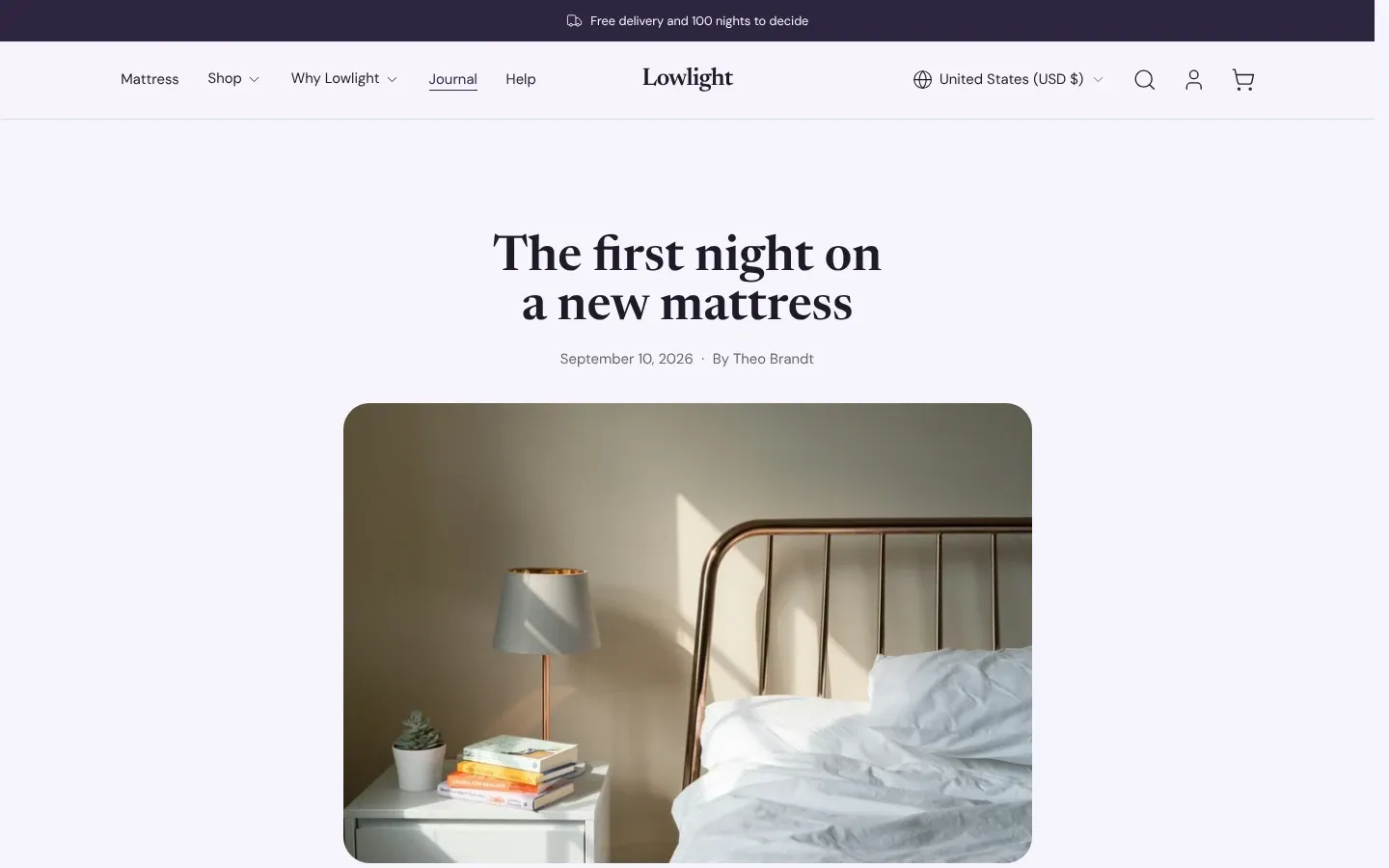
The Article section always starts with four fixed parts, in this order:
- Title
- Details: date, author, reading time and comment count. Each has its own checkbox. Reading time is off by default, and so is comment count.
- Featured image: the post’s image from Shopify admin. The theme loads it ahead of other images, since it is usually the largest thing on screen. A post without an image skips it.
- Content: the post body you wrote in Shopify admin.
You cannot move or remove these four. Under them you can add Text, Image, Button and Custom Liquid blocks, plus app blocks, which then show on every post.
Content width sets how wide the post reads: Narrow, Medium or Wide. Narrow is the default and suits long text.
Settings under the post
Section titled “Settings under the post”These show after the post body, in this order.
- Show tags lists the post’s tags as links to the blog filtered by each one. Tags that start with an underscore stay hidden.
- Show share buttons adds links to share on X, Facebook and Pinterest, by email, and a button that copies the link.
- Show author box adds a card with the author’s name, photo and bio. It is off by default. The theme takes these from the Shopify account of the staff member picked as the post’s author, so fill in the photo and bio on that account first.
- Show previous and next posts links to the posts on either side, with their images, and adds a “Back to” link to the blog. Turning it off removes the back link too.
Comments
Section titled “Comments”The theme shows comments and a comment form on every post when the blog allows comments. There is no theme setting to hide them. You turn comments on or off per blog in Shopify admin, under Content > Blog posts > Manage blogs.
Comments per page sets how many comments show before page links appear, from 5 to 50.
If the blog holds comments for moderation, a shopper who posts sees a message that their comment is awaiting review. Approving, deleting and marking comments as spam all happen in Shopify admin. See Shopify’s guide to managing blog comments.
Show posts on other pages
Section titled “Show posts on other pages”Add the Blog posts section to the home page or any other template to show recent posts.
- In the theme editor, click Add section and choose Blog posts.
- Pick a blog under Blog. Until you pick one, the section shows placeholder cards, on the live store too.
- Set Posts to show, from 1 to 12.
- Choose a Layout: Grid, Carousel, Editorial or List.
Some settings change what the section picks:
- Tag shows only posts with that tag. The theme searches the 50 most recent posts, so an older post with the tag may not show.
- Featured post shows one post first. In the Editorial layout it shows larger than the rest. It counts toward Posts to show.
On a blog post page, the section leaves out the post being read. If you leave Blog empty there, it shows posts from the same blog. That is how the Blog posts section on the article template works. When the blog has no other posts, the section hides.