Variants and swatches
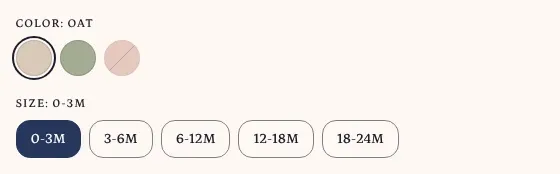
The Variant picker block lets shoppers choose a product’s options, such as color and size. It shows one group per option, labeled with the option name and the value currently chosen. Products without options don’t show the picker.
Choose a picker style
Section titled “Choose a picker style”In the theme editor, open a product template, click the Variant picker block, and pick a Variant picker style:
- Swatches shows a round color or image swatch for each value that has swatch data in Shopify. Values without swatch data, such as sizes, show as pills.
- Pills shows every value as a pill with its name.
- Dropdown shows one menu per option.
Swatches is the default. It works on every product: an option with no swatch data looks the same as with Pills.
Set up swatches in Shopify
Section titled “Set up swatches in Shopify”The picker reads swatches from Shopify. You don’t upload them to the theme. Shopify attaches swatches to option values when you connect an option to a color category metafield.
- From your Shopify admin, go to Products and open the product.
- Give it a product category, such as a clothing category. The category unlocks category metafields, including Color.
- Add the color entries you need to the category metafield.
- In the Variants section, click Add options like size or color and select the category metafield. Its entries become the option values.
- Click Save.
Each entry has a color, and you can give it an image instead, for a pattern or a mix of colors. Shopify data Pawsome reads lists the other features that depend on data in your admin. Shopify’s guide to using category metafields walks through each step, including moving existing options over.
Swatches appear on product cards too. In Theme settings > Product cards, Show color swatches adds a row of swatches for the first option that has swatch data. A card shows up to five swatches, then a count that links to the product page. Each swatch links to a variant with that value.
Sold-out and unavailable values
Section titled “Sold-out and unavailable values”The picker marks a value when choosing it, together with the other values already chosen, can’t be bought:
- Sold out: the variant exists but has no stock left.
- Unavailable: no variant has that combination of values.
Pills show these values with a dashed border and a line through the text. Swatches show them faded with a line across. In Dropdown, the menu adds “Sold out” or “Unavailable” after the value. Screen readers announce the status too.
Shoppers can still choose these values. The add to cart button then reads Sold out or Unavailable and stays disabled until they choose a combination that can be bought. Shopify’s unbranded Buy it now button fades as well.
What changes with the selected variant
Section titled “What changes with the selected variant”When a shopper chooses a variant, the product page updates the price, SKU, inventory status, pickup availability and volume pricing for it. The page address also gets the variant’s ID, so a shared link opens the same variant. In quick view, the address stays as it is.
Variant images
Section titled “Variant images”Give each variant its own image to have the gallery move to it when the variant is chosen.
- From your Shopify admin, go to Products and open the product.
- In the Variants section, click the image icon next to a variant.
- Pick an image from the product’s media, or upload one, and click Done.
- Click Save.
A variant holds one image, and Shopify does not accept videos or 3D models as variant media. See Shopify’s guide to adding images to variants.
To hide other variants’ images, turn on Show only the selected variant’s media in the Product section. The gallery then shows the selected variant’s image followed by the media not attached to any variant.
Combined listings
Section titled “Combined listings”A combined listing groups separate products, such as one product per color, under shared options. Each product keeps its own page and URL. Combined listings need the Shopify Combined Listings app, which is available on Shopify Plus and enterprise plans. See Shopify’s guide to combined listings.
On a combined listing’s product page, choosing a value that belongs to another product in the group opens that product’s page, with the shopper’s chosen values still selected. Choosing a value that belongs to the current product updates the page in place. The same applies inside quick view: a value from another product leaves the quick view and opens that product’s page.
Products with many variants
Section titled “Products with many variants”Shopify allows up to 2,048 variants and three options per product. Shopify notes that some third-party themes might not support more than 100 variants. Pawsome’s picker does not load the full variant list. It builds from the product’s option values and asks Shopify for the matching variant each time a shopper changes an option, so the number of variants does not limit it.
The product data Pawsome adds for search engines lists the first 100 variants. See Shopify’s guide to adding variants for the limits.