Quick view
Quick view opens a product in an overlay from a product card. Shoppers choose options, set a quantity and add to the cart, then keep browsing the page they were on.
What quick view shows
Section titled “What quick view shows”- The product media
- The product title and price
- The rating, when Show rating is on and a product review app has rated the product
- The first 30 words of the description, when Show description excerpt is on
- The variant picker
- A quantity selector, when Show quantity selector is on
- The add to cart button and Shopify’s dynamic checkout buttons
- A View full details link to the product page
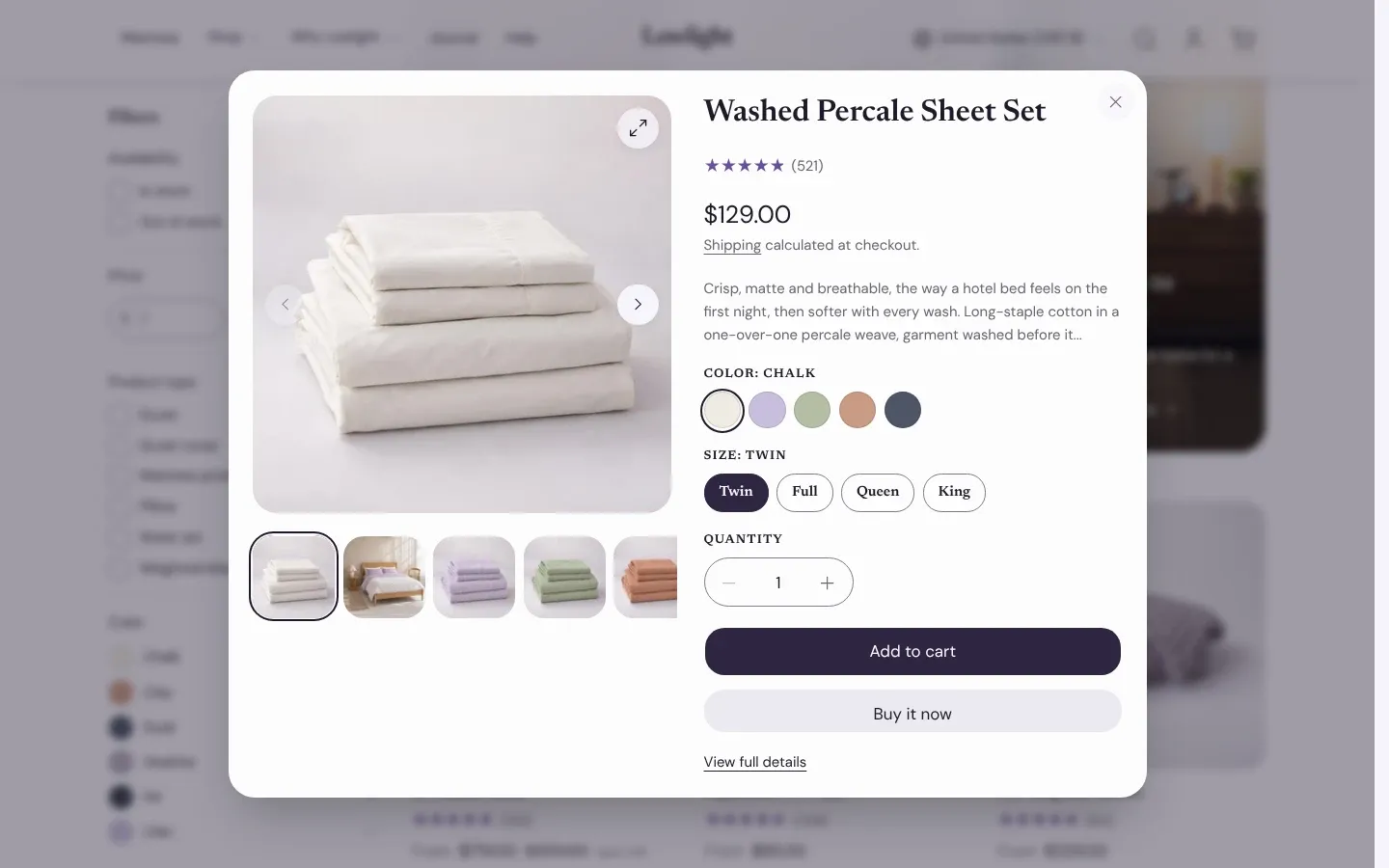
With Full gallery media, images open the same zoom view as on the product page.
Turn it on
Section titled “Turn it on”Quick view opens from the quick add button on product cards, so on cards it needs two settings:
- In the theme editor, open Theme settings > Product cards and turn on Show quick add button.
- Open Theme settings > Quick view and turn on Enable quick view.
On products with options, the card’s button reads Choose options and opens quick view. With quick view off, the same button goes to the product page.
Open quick view for decides what happens on products with a single variant. With Products with options, the card’s Quick add button adds the product to the cart straight away. With Every product, the button reads Quick view and opens quick view for those products too.
Quick view also opens from the rows in the Complementary products block and from the products in the Shop the look section. Those always show their quick add button, so there quick view needs only Enable quick view.
Quick view settings
Section titled “Quick view settings”These settings are all in Theme settings > Quick view:
- Quick view layout opens quick view as a centered Modal, a Drawer from the side, or a Bottom sheet.
- Use a bottom sheet on mobile switches the modal or drawer to a bottom sheet on small screens. Shoppers can drag the sheet down to close it.
- Media shows the Full gallery or the Featured image only.
- Image ratio sets the shape of the media.
- After adding to cart chooses Close the quick view or Keep the quick view open.
With Cart type set to Page, the shopper goes to the cart page after adding, whichever you choose. With Drawer, Close the quick view hands over to the cart drawer, which opens when Open the drawer after adding to cart is on in the Cart drawer section. Keep the quick view open shows an “Added to cart” message with a View cart link in the overlay, and the cart drawer stays closed.
What it can’t do
Section titled “What it can’t do”Quick view is a fixed layout. It does not use the blocks from your product template, so these never appear in it:
- App blocks, such as reviews or product options from an app
- Pickup availability, inventory status, size chart, sales points and other product blocks
- Complementary products
- Custom Liquid
The variant picker in quick view always uses the Swatches style, whatever style your product template uses. Values without swatch data show as pills.
Quick view does not change the page address, so shoppers can’t share a link to the product they have open. They can use View full details to open the product page.
In a combined listing, choosing a value that belongs to another product closes quick view and opens that product’s page.
When your products need more than quick view offers, such as options from an app, turn off Enable quick view. The Choose options button then goes to the product page. Single-variant products still add to the cart from the card’s Quick add button, so turn off Show quick add button if those products need app options too. The Complementary products block and the Shop the look section keep their quick add buttons whatever this setting says.